In an ideal world, shipping companies would provide you with a 4 x 6 inches label file, with the correct orientation and appropriate quality. That would make sense because they want your label to be 4" x 6"!
However, shipping companies often assume that if you lack a commercial shipping solution, you are likely printing at home on a standard 8.5" x 11" sheet inkjet office printer. Consequently, you receive a full-sized 8.5" x 11" page, which then requires cropping down to a 4" x 6" label before printing on your thermal label printer.
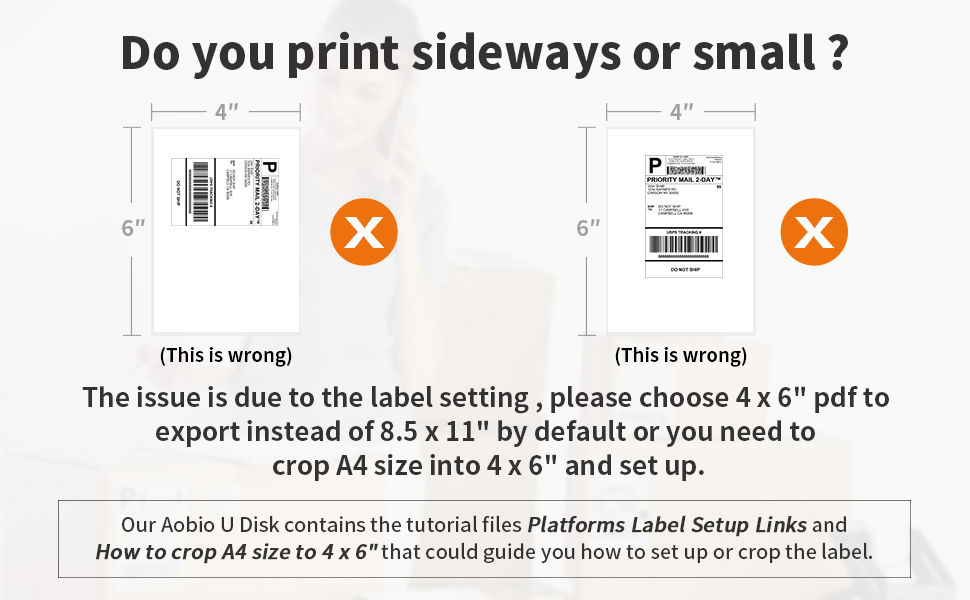
Note: Selling channels such as PayPal, Shopify, Etsy, Amazon, eBay can provide their labels in 4 x 6 size ready for thermal label printer directly. If you don't know how to get it, please check this link on Platform Setup -how to printer labels on most popular platforms.
For Windows users, our favorite method to crop a full size 8.5" x 11" page to a 4" x 6" label is using Adobe Reader's "Take a Snapshot" function. For Mac users, our favorite method is to crop with the default PDF viewer "Preview", although using Adobe Reader might print a bit more clear, you may also use other PDF viewer if you already know how it works.
Tips or Warning: Attempting to capture a screenshot and print directly from the image may significantly degrade print quality, resulting in blurred labels. If you insist on doing it this way, please enlarge the image as much as possible and then take the screenshot.
Using Adobe Reader to Take a Snapshot
- Download Adobe Reader from Microsoft store if you do not have it (or from official website: Adobe website). Note: Please select Adobe Reader DC, it is a free PDF viewer software from Adobe and has always been free, you don't need to pay or subscribe for advanced features.
- Save your label as a PDF file.
- Open the file in Adobe Reader.
- Rotate the label if needed by going to View -> Rotate View.
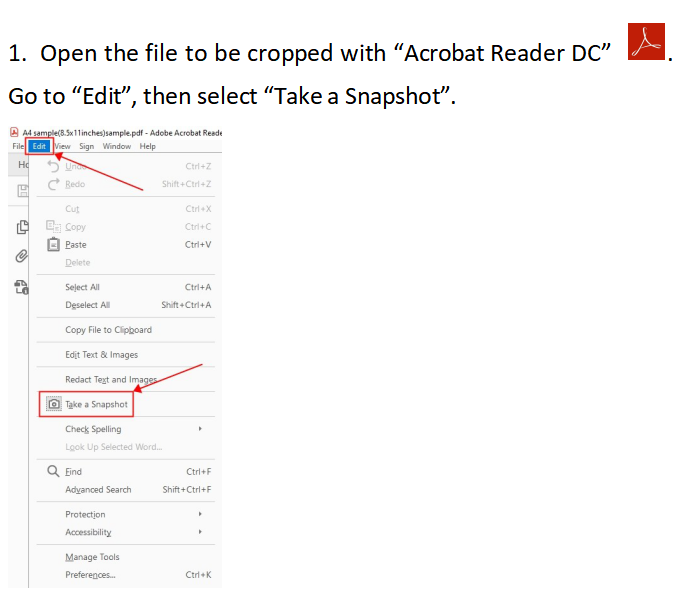
- Go to Edit -> Take a Snapshot.
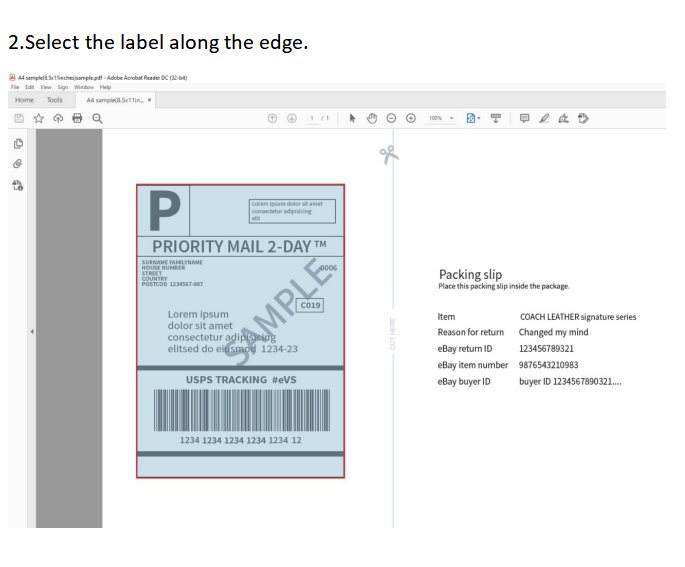
- Click and drag the box over your label.
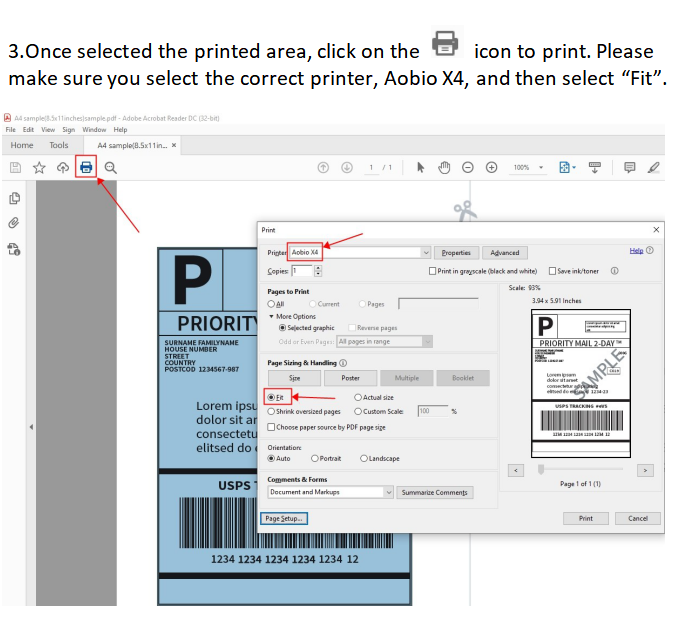
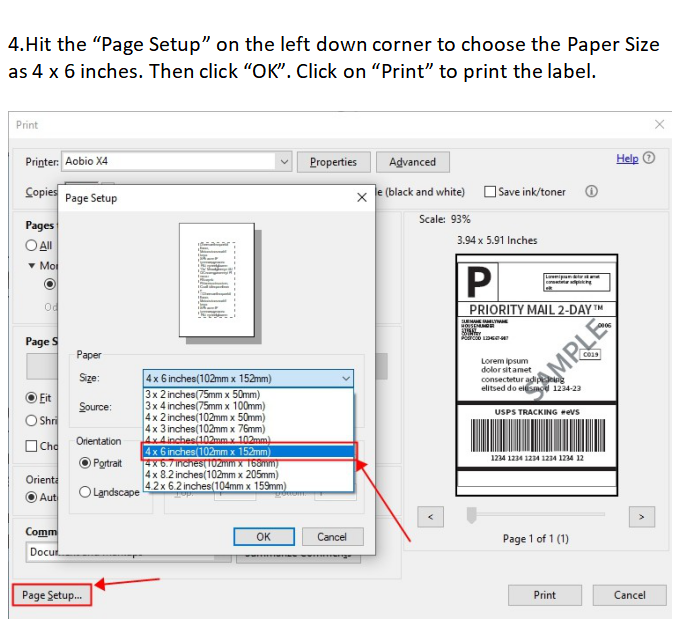
- Go to File -> Print
If the preview looks good, click "Print".
Following are the Screenshot for these Steps.
Was this article helpful?
That’s Great!
Thank you for your feedback
Sorry! We couldn't be helpful
Thank you for your feedback
Feedback sent
We appreciate your effort and will try to fix the article